How to cut regions from a song
Cut Regions lets you skip parts of a song during playback. Use it to shorten an intro, remove an extra verse, or prepare a shorter arrangement for your set.
The original audio stays intact. You can adjust or revert each cut later.
1. Select the part to skip
Open the song in Studio Mode. With the Selection tool active, drag across an uncut part of the timeline to select the region you want to skip. On a phone or tablet, drag with your finger.
Use the section markers to choose musical boundaries, and zoom in when you need more precision. Drag the selection handles to adjust its start and end.
2. Cut the selection
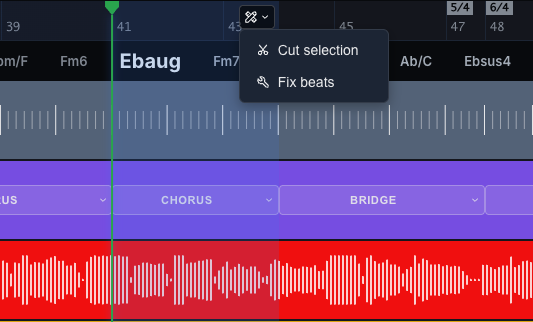
Open the tools button on the selected region and choose Cut selection.
The selection becomes a marked cut region. When playback reaches its start, CueWee jumps to its end and continues with the remaining song. The cut applies across the song, including instruments, click, and guide.
The guide treats the cut as if it were not there. A section that is cut out entirely is never announced, and the guide announces the section that comes after the cut instead, in the bars just before the cut. For example, if you cut out the interlude and the solo, the guide goes straight from the section before them to the next chorus.
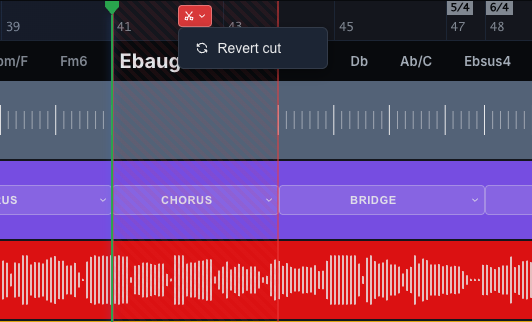
The timeline shows only what plays. The cut part closes up into a thin red line, the parts before and after it sit side by side, and the bar numbers jump over it. A small red label on the line shows how long the cut is. In Live Mode the parts before and after a cut simply join, with no mark.
3. Adjust the cut
Open the red label on the cut and choose Open cuts to adjust. Every cut opens up to its full length again. Drag either handle on the cut region to change where it starts or ends. When beat data is available, the handles snap to the nearest beat. On a computer, hold Shift while dragging to place a boundary between beats.
Play from a little before the cut to hear the transition. Adjust the boundaries until the two parts join where you want them. When you are done, open the cut's menu and choose Close cuts. Cuts also open on their own while the tempo tool is on.
4. Restore a cut region
Open the menu on the cut region and choose Revert cut. That part of the song plays again.
You can make several cuts in a song. To cut another part, select an uncut region and repeat the steps above.
5. Save your changes
Click Save Changes at the top of the song page. In the desktop app, the button is in the title bar. You can also press ⌘ + S on Mac or Ctrl + S on Windows.
Creating, adjusting, and reverting cuts are edits: save after each set of changes you want to keep. See Save your changes.
Choose the right tool
- Cut Regions: skip a planned part of the song across all tracks.
- Loop: repeat a region for practice.
- Razor: split a clip or section for editing.
- Mute: silence a clip while the rest of the song continues.