How to create your custom guide
CueWee automatically generates a voice guide for every song, announcing sections like intro, verse, chorus, and bridge. But you can create custom cues with any text — in English, Spanish, or Portuguese — spoken by one of CueWee’s voices.
Want to change the voice of the automatic Guide track instead? See How to change the automatic guide voice.
When to use a custom cue
- Announce a specific break in the song (“Drum solo,” “Modulation”)
- Give instructions to the band (“Heads up, drop coming,” “Key up”)
- Mark important moments for in-ears (“Camera 2,” “Light cue”)
- Create a more natural guide using your band’s expressions
Step by step
1. Open the section menu
In the player, open the section where you want to add the cue. On desktop: right-click it. On mobile: press and hold it.
2. Click "New custom guide"
What you click depends on the mode of the section menu:
- Simple: in the Cues list, open the dropdown of the row where the guide should play. At the bottom of the dropdown, click New custom guide.
- Advanced: in the grid, click the cell (the beat) where the guide should play. At the bottom of the cell menu, click New custom guide.
The same button is in the pre-count popup, in both modes, so you can say your own words before the song starts too.
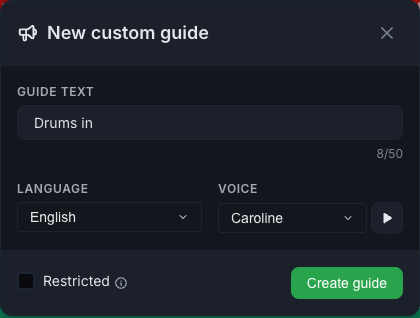
The New custom guide window opens. The guide you create lands in the row or cell you clicked.
3. Type the text
In the text field, write what the voice should say.
- Limit: 50 characters
- A counter shows how many characters you’ve used
- Short phrases work best — the voice has limited time to speak before the section begins
The field shows an example to get you started: “e.g. Bridge into chorus.”
4. Choose the language
In the Language list, choose:
- Português (Brasil)
- English
- Español
5. Choose the voice
For each language, several voices are available in the Voice list. Try a few to find one that fits your song: firmer voices for rock, softer voices for ballads.
Click Hear this voice to listen before you create the guide. It plays a sample of the voice and language you picked, not your own text, and Stop ends it. Change the voice and listen again as many times as you like. Nothing is saved until you click Create guide. The desktop app's creator window does not have the preview yet, so use the web or mobile app to listen first.
6. (Optional) Restricted
Check Restricted if you want the cue to stay in this song only.
- Unchecked (default): the cue is saved to your cue library and can be reused on other songs.
- Checked: the cue is specific to this song and won’t appear on others.
💡 Use shared cues for recurring phrases (e.g., “Chorus”). Use song-specific cues for something unique to that song (e.g., “John’s solo”).
7. Click "Create guide"
CueWee records your phrase with the voice you picked and adds it to the section. You’ll see Synthesizing… while it works (usually a few seconds).
When it finishes, the window closes and the guide appears in the row or cell you clicked.
Reusing cues you’ve created
Cues you’ve marked as reusable show up under My guides in the cue dropdowns and cell menus of any section, in the same song or in other songs. The count-in popup lists them too.
Just pick the cue from the list to put it in a row or cell. No need to recreate it.
Edit a guide you created
Made a typo, or want another voice? You can change a guide without starting over.
- Open the dropdown of any row (Simple) or the menu of any cell (Advanced) and find the guide under My guides.
- Click the pencil button next to it. The Edit custom guide window opens with its text, language and voice.
- Change what you need. Hear this voice works here too.
- Click Regenerate.
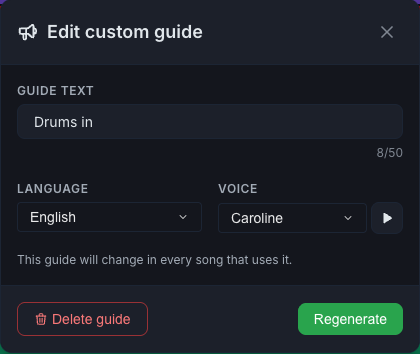
CueWee records the new version. The guide keeps its place in every song, and it changes in every song that uses it, so the window warns you before you regenerate. Exports use the new version too.
To delete a guide you no longer want, click the pencil, then the trash can at the top right of the edit window, next to the X. The button turns red and reads Delete for real?, so press it again to delete. Deleting removes it from your library and from the song you have open, where every slot that used it is emptied and saved right away. Other songs that already use it keep playing it.
Common errors
- Empty text — the Create guide button stays disabled until you type something.
- Text too long: the limit is 50 characters. Shorten the phrase.
- It failed: an error message appears. Try again. If it keeps failing, rewrite the phrase with simpler words.
- The sample would not play: when Hear this voice fails, a message asks you to try again.