How to export songs
CueWee’s export tool produces audio files ready to use on your gear — DAW, playback app, in-ear monitor, or a regular player. You choose which tracks, in which format, and how they get mixed together.
Who can export
- The song owner (always)
- Shared users if the owner allows export
- The song must have finished processing
You can export the same song as many times as you want, in different formats and configurations.
Step by step
1. Open the song in the player
Go to the song you want to export.
2. Click "Export Song"
The button sits at the top of the player. The Export Song window opens, split into two panels.
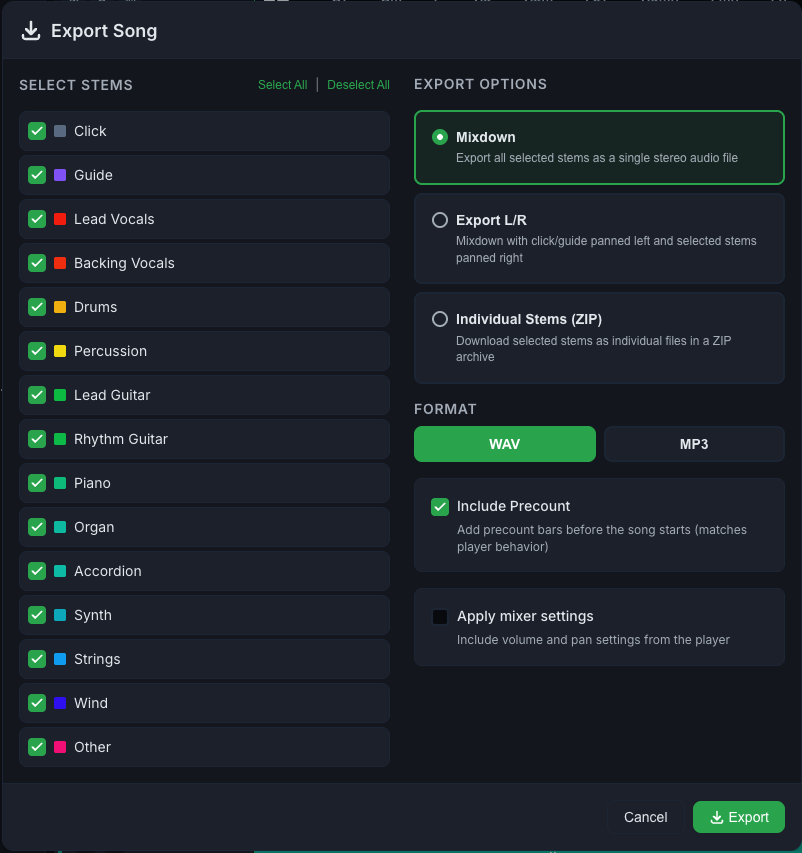
3. Left panel — Select Stems
A list of all the song’s tracks with checkboxes:
- Check/uncheck each track individually
- Use Select All or Deselect All at the top
- Each track shows a colored square and the name (e.g., Vocals, Drums, Click, Guide)
💡 To produce in-ears for a specific musician, select Click + Guide + the relevant instruments for that position.
4. Right panel — Export Mode
Choose how the tracks will be combined:
Mixdown
“Export all selected stems as a single stereo audio file”
Creates a single stereo file with all the selected tracks mixed together. Ideal for simple playback or reference.
L/R Export
“Mix with click/guide panned left and selected tracks panned right”
Creates a stereo file where:
- Left (L): click + guide
- Right (R): selected instruments
Perfect for in-ear systems that split L/R: the drummer hears the click in their left earpiece and the band in their right, for example.
Individual Stems (ZIP)
“Download selected stems as individual files in a ZIP archive”
Each track becomes a separate file inside a ZIP. Use this when you’ll import into your DAW or a playback app that supports multitrack.
Every file in the ZIP has the same length and starts at the same point, so they line up automatically when you import them into your DAW. Exporting a ZIP with a pitch or tempo change now works correctly everywhere; the native iOS and Android apps will get this fix in an upcoming release.
5. Format
- WAV — no quality loss, uncompressed. Larger file, best quality. Use for DAW and production.
- MP3 — compressed, smaller size. Use for quick sharing over WhatsApp/email.
6. Additional options
Count-in at the start
“Add count-in bars before the song starts”
Includes the count-in at the start of the song in the export: the pre-count bars you set up in the player. Useful for rehearsing the entrance to a song.
When the first section has its own count, the option is checked and locked, and the info icon says “{Section} already has its own count-in.” That count plays instead of the pre-count.
The count-in is spoken by the Guide track. If Guide is not among your selected tracks, this option turns off and cannot be checked, with an info icon explaining why. Select Guide to include the count-in in your export.
Apply mixer settings
“Include volume and pan settings from the player”
Applies the volume, pan, mute, and solo settings you made. If unchecked, the export uses the default levels (volume 100%, pan center) — ignoring your adjustments.
7. Click "Export"
Click Export to start. CueWee shows your song's own waveform, filling in with color from left to right as the file renders, along with the current step (like "Getting tracks ready" or "Rendering audio") and a percentage. To stop the export, use the small X next to the waveform.
Keep using the app while it exports
You don't have to wait on this screen. Minimize it with the button in the top corner, then switch to another song or browse your library. A small progress pill stays visible (bottom right on desktop and web, above the bottom bar on phones) so you can check on the export or bring the full screen back at any time.
Only one export runs at a time. Pressing Export again while one is already running just reopens that export's screen instead of starting a new one.
When it finishes
The file downloads automatically (or, on desktop, lands in the folder you picked). The screen shows a green check, the file name and size, and a button to get the file again, matching your platform:
| Platform | Button |
|---|---|
| macOS, Windows | Show in folder |
| iOS, Android | Share again |
| web | Download again |
The finished file stays available for the rest of your session, as long as you keep this screen open. If you closed the tab it downloaded into, dismissed your browser's download prompt, or just want another copy, come back to this screen and use that button instead of exporting again.
Closing this screen with the X in the corner removes the finished file from CueWee. Export the song again if you need another copy after that.
If you close the browser tab (web) or the app window (desktop) while an export is running, CueWee asks you to confirm first, so you don't lose it by accident.
Common use cases
For the whole band (simple in-ear system)
- Mode: Export L/R
- Tracks: all
- Format: WAV
- Count-in at the start: ✓
For the drummer
- Mode: Mixdown
- Tracks: Click + Drums + Guide + Bass
- Format: WAV
For a playback app (Ableton, Playback Rehearsal, etc.)
- Mode: Individual Stems (ZIP)
- Tracks: all
- Format: WAV
To send a quick reference
- Mode: Mixdown
- Tracks: all (or just vocals + backing)
- Format: MP3
Common errors
- "Export" button disabled — you need to select at least one track.
- Download doesn’t start — check that your browser isn’t blocking downloads. Try again.
- File too big — pick MP3 instead of WAV if you don’t need the very best quality.
- "This file is no longer available": the finished file was cleared from your device or your session ended (for example, after clearing your browser's site data). Click Export again.