Apps and platforms
CueWee runs everywhere your team does: in the browser, on macOS and Windows, and on iOS and Android.
What you need
CueWee works on browsers released in the last few years. These are the oldest versions we support.
| Browser | Minimum version |
|---|---|
| Chrome or Edge | 111 |
| Safari on Mac | 16.4 |
| Safari on iPhone and iPad | iOS 16.4 |
| Firefox | 115 |
By system:
| System | In the browser | With the app |
|---|---|---|
| macOS | 10.15 Catalina or later | 13.3 Ventura or later. Older Macs from 11 Big Sur on use the legacy Mac version |
| Windows | Windows 7 or later, using Chrome or Edge | Windows 10 or later, 64 bit |
| iPhone and iPad | iOS 16.4 or later | iOS 16.4 or later |
| Android | Android 8 or later, using Chrome | Android 8 or later, with Android System WebView 111 or later (update it from the Play Store) |
Newer is always better: a current browser is faster, safer, and gets every feature first.
If you see a "not supported" screen
An old browser now shows a clear screen explaining that it is too old for CueWee, instead of a blank page. If you see it, update using the versions above.
On a Mac, Safari comes with the system, so you update it in System Settings, then General, then Software Update. Both Big Sur and Monterey can reach Safari 16.4 or later, so on most Macs that update is all it takes in the browser.
The desktop app works differently. It uses the web engine built into macOS itself, and updating Safari does not change that engine: only a macOS update does. That is why the desktop app needs macOS 13.3 or later even when Safari is up to date. On an older Mac, use the legacy version below.
If your Mac is stuck on Catalina or earlier and cannot reach Safari 16.4, you have two options: install Chrome or Firefox, which keep updating on older systems, and open studio.cuewee.app there. Or, if you use the desktop app, see the legacy version below.
Legacy Mac version
If your Mac runs macOS 11 Big Sur, 12 Monterey, or Ventura before 13.3, the current desktop app will not run on it, even with the latest Safari, because it uses the engine that comes with macOS. CueWee 1.3.12 for Mac is the desktop version for those Macs.
Download CueWee 1.3.12 for Mac
This version gets no new features, only fixes that keep it running on those Macs. We keep it available on a best effort basis, so it may stop working if the CueWee service changes in the future. It updates itself only to those fixes, never to a version your Mac cannot run. There is no legacy version for Windows, since Windows keeps its own browser engine up to date, and there is no legacy web version either.
Web
Open studio.cuewee.app in any modern browser, on desktop or mobile. Nothing to install.
Desktop (macOS and Windows)
Download the desktop app from www.cuewee.app/download. It is a direct download from our site, not from the Mac App Store or the Microsoft Store. The page detects your system and offers the right build:
- macOS 13.3 Ventura or later. One download runs natively on Apple Silicon and on Intel Macs. On macOS 11 to 13.2, use the legacy Mac version.
- Windows 10 or later, 64 bit.
Both versions install updates by themselves in the background, so you stay on the current build without downloading it again.
The desktop app adds pro audio features on top of everything in the web app:
- Choose your output device and sample rate.
- Route each stem to a specific channel pair on multi output interfaces (for example RME or Focusrite), so you can send click, guide, and each instrument to separate outputs. Open the Audio Output Device settings to set this up.
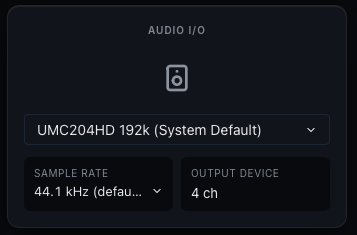
Full walkthrough: Audio routing on desktop.
Installing on Windows
The Windows installer is not signed yet, so on the first install Windows may show a Windows protected your PC warning from SmartScreen, or name an unknown publisher. Click More info, then Run anyway. The certificate is on the way, and the warning disappears once it is in place.
Sample rates on Windows
Windows plays every app through its shared audio engine, which resamples everything to the rate configured for the device. CueWee only offers rates up to that one, because asking for a higher rate would just add a second resample. To run at a different rate, change it in the Windows sound settings for the device (Sound settings, then the device's Properties, then Advanced), and CueWee follows it.
Sign in to the desktop app
When you open the desktop app, it asks you to sign in through your browser. Follow the prompt to sign in at studio.cuewee.app, then return to the app.
Mobile (iOS and Android)
Download CueWee from the Apple App Store or Google Play. The mobile apps keep working offline once songs are loaded, and they update themselves in the background.
If you use CueWee in your phone's browser, the Library may show a small card at the bottom on a later visit, pointing to the app for your phone. Tap Get the app to open the store, or Not now to hide it. The web app keeps working the same either way.
The bottom bar has three tabs: Library, Setlists, and Preferences, where your account, sign-in methods, storage, and language live. The icon at the top left of the Library and Setlists screens opens the side menu, with upload, shortcuts, and the rest.
On these apps you can also set how much space the audio cache is allowed to use. See Offline playback and cache.
On the mobile apps, subscriptions are managed through your device's system browser. Tap Manage Subscription and CueWee opens the plans page in your browser.