How to edit sections on the guide track
CueWee automatically splits each song into sections (intro, verse, chorus, bridge, solo, outro). You can adjust those sections and set the lead-in of each one: the voice and the count the band hears just before it starts.
Where the sections live
On the player’s timeline, above the tracks, you see colored bars representing the song’s sections. Each bar is a section with:
- A name (e.g., Intro, Verse 1, Chorus). You can change it in the Cues list of the section menu.
- A color for visual identification
- A lead-in (the voice announcements and count that play before the section)
The bar shows the first guide of the lead-in, 123 when the lead-in only counts, and the section name dimmed when the lead-in is silent. If you have not edited the grid, it shows the section name.
Open the section menu
On desktop: right-click the section you want to edit. On mobile: press and hold it. The section menu opens just below the section, or above it when there is no room below.
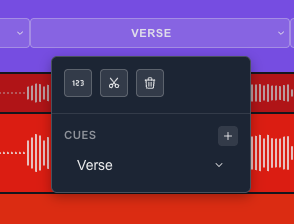
Available actions
Simple and Advanced
Near the top of the menu, a switch with two tabs, Simple and Advanced, picks how you set what plays before the section. Every section starts in Simple. The tab you pick is remembered for that section when you save.
Simple is the quick way:
- The 123 button turns a count before the section on or off. Useful for practicing the entrance of a specific part, giving the band time to get ready before the chorus, or adding a countdown at important transitions.
- The Cues list holds the voice announcements. The first row is the section’s name, and you can change it again here. The next rows are extra guides. Click + to add a row and x to remove one. Each dropdown also has a Count group with the numbers 1 to 7, so you can place single count numbers in the list, like in the grid. At the bottom of each dropdown, New custom guide creates a cue in your own words. See How to create your custom guide.
You can add several cues to the same section. For example, at the start of the chorus you can play “Chorus” followed by “1, 2, 3, 4.”
Advanced is a grid that decides beat by beat what plays before the section. The section “Advanced: the grid” below explains it.
Next to the tabs, the Preview button plays the song from just before the section’s lead-in, with the click and the guide, through to one beat into the section. It lights up what is playing: the grid cell in Advanced, or the row of the Cues list (and the 123 button during the count) in Simple. Press it again (Stop) to stop. Closing the menu stops it too.
The two tabs always stay in sync, and what plays is always your latest edit. Switching tabs alone never changes what plays.
- A change in Advanced updates Simple: the first guide in the grid becomes the section name, the other guides go to the Cues list in order, and 123 turns on only when the last row of the grid is a full count in order (1, 2, 3, 4 with every beat filled). Any other count numbers (another count row, a count with gaps, numbers out of order) go into the Cues list as single numbers.
- A change in Simple rebuilds the grid from Simple, so guides go back to their usual places. For example, a guide you had moved to beat 3 goes back to beat 1.
Split section (blade)
Splits the current section in two at the playhead when the playhead is inside that section. If the playhead is outside it, the section is split at its midpoint. When beat data is available, the cut snaps to the nearest beat. Use it when you want to:
- Mark a sub-division within a section (e.g., “Verse 1A” and “Verse 1B”)
- Create an intermediate cue in the middle of a long part
Delete section (trash 🗑)
Removes the section. The previous and next parts merge together.
⚠️ This action can be undone by reopening the song. But if you export before undoing, the export will reflect the edited structure.
Move where a section starts and ends
Sections sit side by side with no gaps between them, so a section's end is the next one's start. Moving that point is one edit, and both sections change together.
There are two ways to move it, and both are available everywhere.
Drag the handle. Each section has a handle on its left edge, right where it meets the previous one. Drag it to move the boundary. It lands on the nearest beat, and holding Shift while dragging places it freely, between beats. The handle needs a mouse or a trackpad, so it does not appear on a touch screen.
Step it from the section menu. Open the section menu (right click the section, or press and hold it on a touch screen) and click the button at the end of the row, the one that adjusts start and end. Start and End rows appear right below the buttons. Each arrow moves that edge one beat, and the value between the arrows shows where it landed. It uses the same unit as the timeline ruler: bar and beat (for example 12.3, bar 12, beat 3) when the ruler shows bars, or minutes, seconds and tenths when it shows time. A song without beat detection always reads in time, and its arrows step by one beat worked out from the song's BPM, or by a tenth of a second when the BPM is unknown. The value updates as you click, so you can watch the section grow or shrink without closing the menu. This works on a computer too, and it is the precise option when a beat is only a few pixels wide.
The last section's End row is disabled, because a song's end is fixed.
A boundary never reaches its neighbors. It stops one bar short on either side, so two sections can never start at the same point and no section can shrink to nothing. When an arrow has nothing left to give, it turns grey.
Advanced: the grid
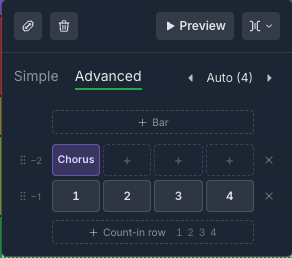
Every section has a lead-in: the voice that tells the band what is coming, and the count that brings them in on the beat. In Advanced mode you build it in the grid at the bottom of the section menu. The beats control sits on the right of the Simple and Advanced tabs.
How the grid reads
- Each row is one bar and each cell is one beat. The last row is the bar right before the section. The rows above it come earlier.
- A section with an empty grid has no lead-in. You see “No lead-in: the section starts with no cue.”
Fill a cell
Click or tap a cell to open its menu. Pick:
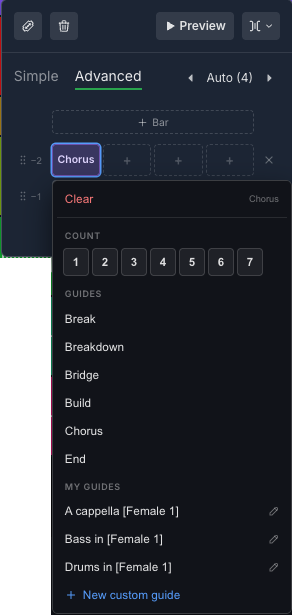
- Count, a number from 1 to 7
- Guides, the ready-made cues such as Intro, Verse, Chorus, Bridge or Solo
- My guides, the cues you created. See How to create your custom guide. New custom guide is at the bottom of the menu.
Clear empties the cell. You can put a different cue on every beat, and as many cues as you want in the same section. For example, “Chorus” on beat 1 of the first bar and “1, 2, 3, 4” in the bar after it.
Add and remove rows
- + Bar, above the first row, adds an earlier bar.
- + Count-in row, below the last row, adds a bar with the count already in place.
- Each row has a handle that shows how far it is from the section, and a button to remove it. A grid holds up to 8 rows.
Move things around
Drag a cell to another beat or another row to move its cue. Drag a row by its handle to change its place. On a touch screen, press and hold first, then drag.
Beats per bar
The beats control, on the right of the Simple and Advanced tabs, starts on Auto, which follows the real bars of the song. Use the arrows to choose from 1 to 7 beats per bar instead. The rows then count back from the section in groups of that size, whatever the bar lines say. This is handy for a section that comes in on an odd number of beats. Click the value to go back to Auto.
Changing the beats resizes every row. A count row (1, 2, 3, 4 untouched) grows or shrinks with it: 4 to 5 beats gives 1, 2, 3, 4, 5, and back to 3 gives 1, 2, 3. Other rows gain empty cells, or lose their last cells when you lower the beats.
When you close the menu
Empty rows at the top of the grid are removed when the menu closes, so the lead-in starts at the first cue. Near the start of a song, cells that would land before the first beat stay silent.
The guide track, the player and every export play exactly the lead-in you see here.
Practical tips
- For rehearsals: keep the lead-in short and direct (“Verse,” “Chorus”)
- For live performances: add a count (“1, 2, 3, 4”) at critical transitions, with the 123 button in Simple or a count row in Advanced
- For important sub-divisions: use Split section plus a custom cue (for example, “Break”)
Save your changes
Edits you make to sections, lead-ins (and the tab, Simple or Advanced, remembered for each section), the beat grid, cut selections, and clips you split with the Razor tool or silence with the Mute tool stay unsaved until you save them.
Save Changes appears at the top of the song page whenever the song has unsaved edits. Click it to save. In the desktop app, the same button lives in the title bar, on the right. In a narrow window it shows as an icon only, with no text label, and the tooltip still names it. If you don’t see it there, update the app.
You can also save with ⌘ or Ctrl + S.
Saving needs an internet connection. Offline, Save Changes is disabled, so reconnect before you save edits to sections, beats, cuts and stem clips. Playback settings like pitch, tempo and volume still work offline.
If you leave the song while edits are still unsaved, CueWee asks what you want to do with them first.