How to generate synced lyrics
CueWee can transcribe a song's vocals into time aligned lyrics that scroll in sync with playback, and export them as subtitle files.
Before you start
- The song must be processed and have vocals. If there are no vocals, CueWee shows "This song has no vocals to transcribe."
Generate the lyrics
- Open the song in the player.
- Open the Lyrics panel.
- Click Generate. CueWee listens to the vocals and aligns the words. This takes a moment, and you will see playful status messages while it works.
- When it finishes, the lyrics appear and highlight word by word as the song plays.
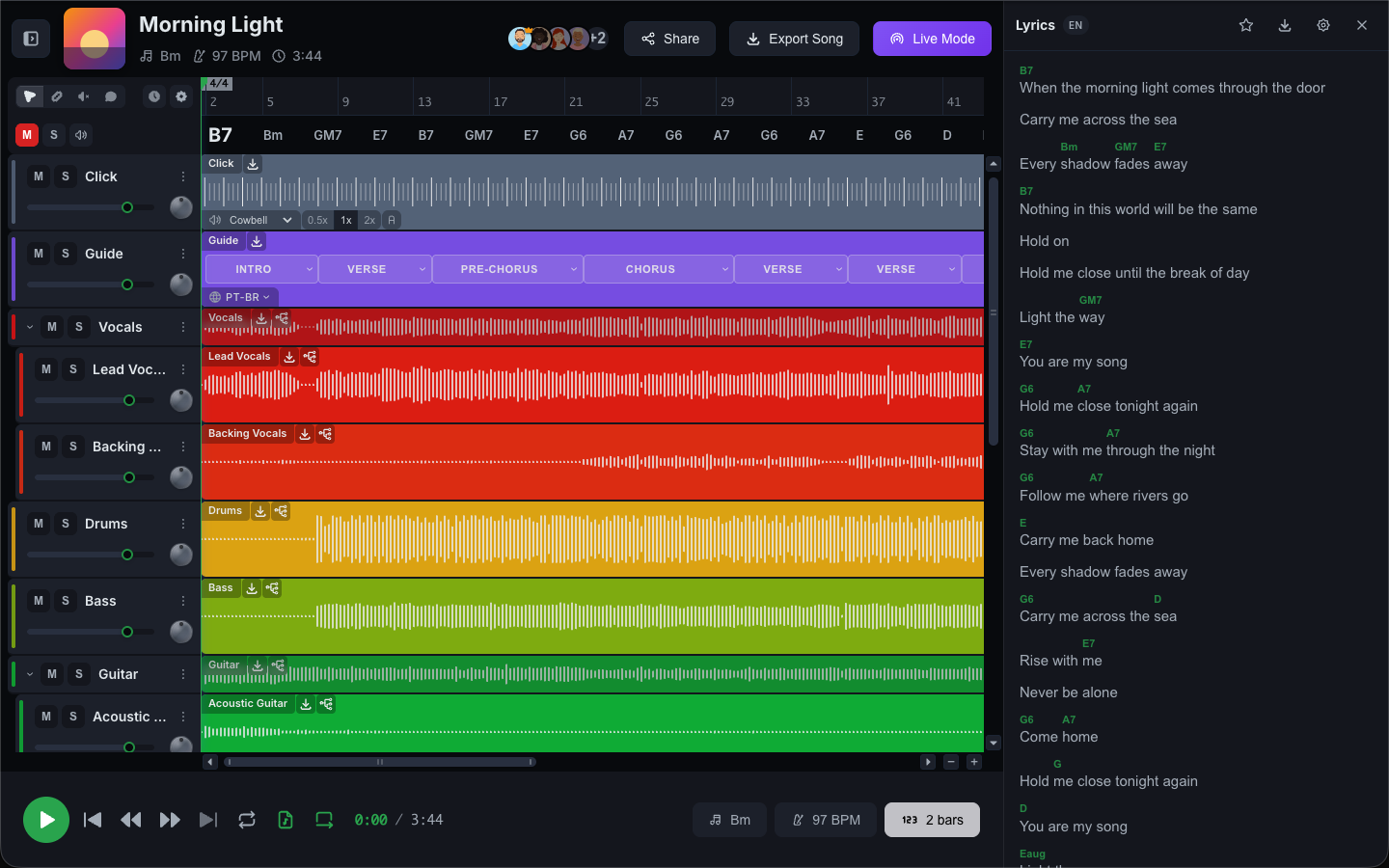
On a computer, the Lyrics panel opens on the right, from the top of the window to the bottom, and the tracks move over to make room for it. To give you more space, the menu on the left closes, and it stays closed until you open it again with the ☰ button. On a phone, the lyrics open from the bottom of the screen.
Adjust the view
- Show spoken parts: turn it on or off to include or hide spoken sections like intros, exhortations, and ad libs.
- Text size: increase or decrease the lyrics text size.
- Rate the lyrics: rate the transcription quality and the sync timing to help us improve.
Download the lyrics
Click Download lyrics and choose a format:
- LRC: synced lyrics for most media players and karaoke apps.
- SRT: subtitles for video players and editors.
- ASS: styled subtitles with precise timing.
If something goes wrong
- "This song has no vocals to transcribe": the song has no vocal stem to work from.
- "Lyrics generation failed": click Try again. If it keeps failing, write to contact@cuewee.app.