How to use the music player
The CueWee player is the heart of the app. This is where you play the song, adjust the mix of each track, edit sections, and prepare everything for rehearsal or performance.
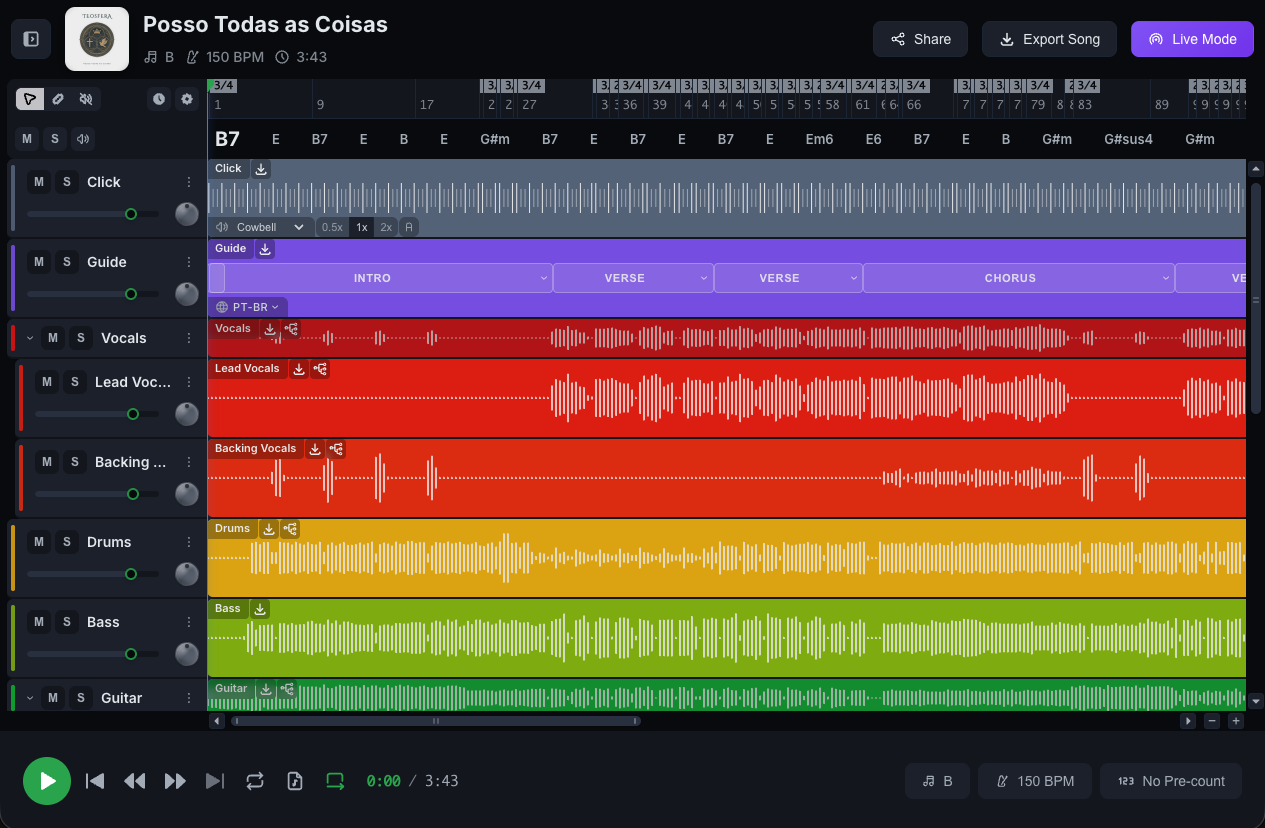
Opening a song
- Go to your library at studio.cuewee.app
- Click the song you want to open
- The song opens in the player
Main controls
In the player’s control bar:
- Play / Pause — keyboard shortcut:
SPACE - Back to start — restarts the song
- Previous section / next section — jumps to the next part of the song (intro, verse, chorus…)
- Loop — toggles repeat mode
- Master Volume — mute button on the master
- Time display — shows
0:00 / 3:45(current position / total duration)
On mobile, the controls are centered; on desktop, they sit in a horizontal bar.
Per-track controls
Each track (vocals, drums, bass, etc.) has its own controls:
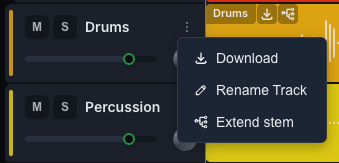
- M (Mute) — silences the track
- S (Solo) — plays only this track
- Volume control — adjusts that track’s volume
- Pan control — moves the track to the left or to the right
- Color indicator — colored border that identifies the track
- Menu ⋮ — options: Rename, Download, Extend, Restore, Delete
Delete a track
Every track in the player can be deleted, Click and Guide included. Open the track’s ⋮ menu, click Delete, and confirm with Delete track.
- Instrument track: the track is deleted together with its audio file. On a grouped track, every track separated from it goes too.
- Guide: the automatic guide is generated from the song’s sections, so deleting the Guide track deletes the sections. The section markers on the timeline and the cues attached to them go with it.
- Click: the click is generated from the beat grid, so deleting the Click track deletes the beat grid, and everything that follows the beats goes with it.
Deleting is permanent and cannot be undone. If you only want to stop hearing a track for now, use its M (Mute) button.
The only track you cannot delete is Original, the mix you uploaded: every other track was separated from it. To remove it, delete the song.
Download a track
Open the track’s ⋮ menu and click Download. CueWee saves that one track as a WAV file, with the key and tempo you are playing it at.
The file is named after the song, the track as your player shows it (your own name for it, if you renamed it), the key and the tempo. For example: amazing_grace_bass_G_72bpm.wav. Click and Guide always download as click and guide.
Add your own track (Pro)
At the bottom of the track list, past the last track, there is an + Add stem button. Click it, pick an audio file, and it joins this song: a cue track, a part you recorded yourself, a pad only your band uses. Nothing is reprocessed, and the track plays right away while it uploads.
It works on your own finished songs, on the Pro plan. Full details in How to import your own tracks.
💡 Auto-Solo makes solo follow you: when you switch tracks, solo moves to the new one automatically. To turn it on — on desktop: Shift+click the S button. On mobile: press and hold S.
Global adjustments
Pitch (♩)
Click the pitch control (it shows the current key, for example “C maj”) to open it and shift the song’s key in semitones. Useful for adapting the song to your vocalist.
The shift applies to the pitched tracks — vocals, bass, guitar, keys. Drums and percussion are not transposed: they keep sounding as they did in the original recording.
This needs a device that can change pitch and tempo while the song plays. If you see “Pitch/Tempo not available on this device,” the control is disabled.
Tempo (BPM)
Click the tempo control (it shows “120 BPM” or similar) to open the Tempo tool. Use it to change the song’s BPM or create speed-up/slow-down curves.
See the dedicated tutorial: How to edit the tempo.
Pre-count (123)
Adds pre-count bars before the song starts, ideal when you’re practicing and need to come in on the right beat. It shows “4 bars” or “No Pre-count.” Click the button to turn the pre-count on or off.
The pre-count starts off. Turn it on when you want a count before the music, for example when you start playback in the middle of the song. CueWee remembers your choice for the next songs.
On desktop the pre-count popup opens when you hover over the button. Near the top it has two tabs, Simple and Advanced. It starts in Simple, and the tab you pick is remembered for the song when you save.
Simple has an on/off switch, a Bars stepper (0 to 4) and a Counts stepper, the beats per bar (2 to 7). Counts starts on Auto, which follows the song, and the reset button next to it brings Auto back.
Advanced holds the same grid you use on a section. Each row is one bar and each cell is one beat, so you can write exactly what the band hears before the song: a guide such as “Intro” on the first beat, then “1, 2, 3, 4” on the last bar. The popup has the on/off switch, + Bar, + Count-in row, and the beats control (Auto with arrows), and they work as described in How to edit sections.
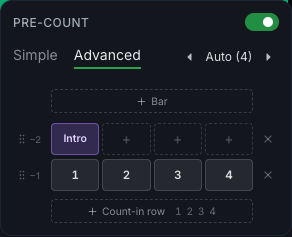
The two tabs always stay in sync, and what plays is always your latest edit. Switching tabs alone never changes what plays. A change in Advanced updates Simple: Bars and Counts follow the grid. A change in Simple rebuilds the grid from Simple, so guides go back to their usual places.
The pre-count you edit here is the one you hear in the player and in your exports.
A song with no detected beats still gets its pre-count when it plays from the start, counted at the song’s tempo.
Count-in in the first section
The first section of a song (Intro, Verse, whatever comes first) can carry the count-in itself. In the section editor, turn on the 123 button in Simple, or put count numbers (1 to 7) anywhere in the grid in Advanced, with as many bars as you want. If the section starts right at the beginning of the song, the count plays before the song starts, with clicks, just like the pre-count.
Songs you process now come with the 123 already on in their first section, so they count you in from the start. Turn it off in the section editor if you don't want it.
When the first section has a count, it replaces the pre-count at the start of the song. Your pre-count setting is not changed or turned off: it still counts you in when you start playback in the middle of the song, for example by pressing play on the chorus. Remove the count from the first section and the pre-count plays at the start again.
A first section with only its name, or cues without numbers, changes nothing: the pre-count works as before. The same happens when the Guide track is muted: the first section's count does not take over, and the pre-count works as before.
Toolbar
At the top of the track list:
- M All / S All — mute/solo all tracks at once
- Auto-Scroll — keeps the playhead always visible on the timeline during playback
- Tempo Tool — opens/closes the tempo editor on the timeline
- Tools ⚙ — menu with:
- Set tracks LR — sends click and guide to the left channel and the other tracks to the right (useful for in-ears)
- Reset tracks — restores volume, pan, and mute/solo on every track to their default values
- Group Tracks — nests related stems under a parent track (for example, the five drum tracks inside a “Drums” group)
- Normalize Waveform — visually levels the waveforms across tracks
Grouped tracks
When you process a song with detailed instruments (e.g., drums in 5 tracks), CueWee may group the sub-tracks under a parent track with an expand/collapse arrow. Click the arrow to show or hide the sub-stems.
Useful shortcuts
SPACE— play/pause (needs a keyboard, so desktop only)- Click on the timeline — repositions the playhead
- Open the section editing menu. On desktop: right-click a section of the timeline. On mobile: press and hold it.