How to use Live Mode and setlists
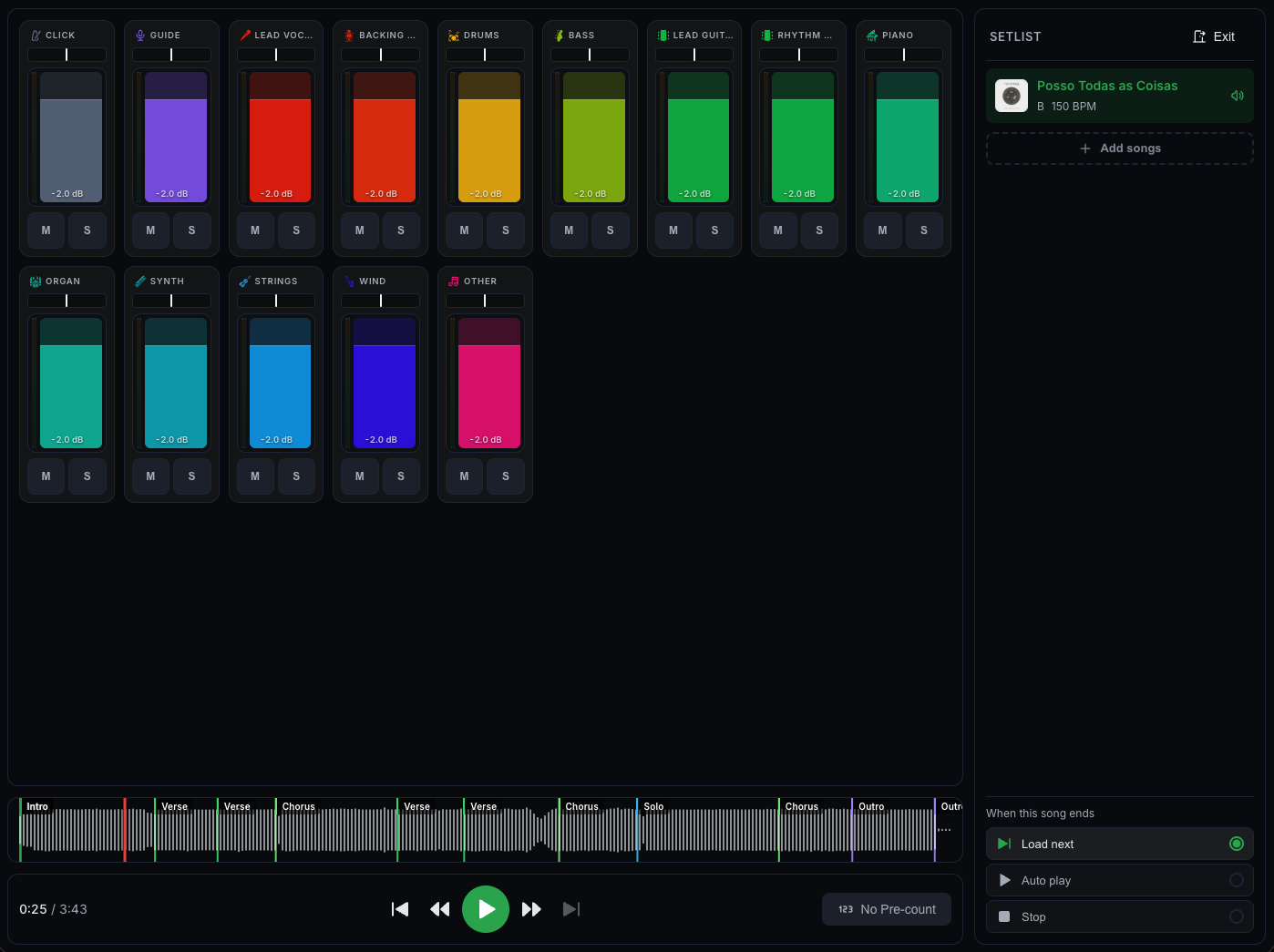
Live Mode turns the player into a performance view built for the stage: a clean mixer, big transport controls, and setlists you can run in order.
Switch between Studio and Live Mode
- In the player, open Live Mode.
- To go back, click Exit to return to Studio Mode.
Build a setlist
- In Live Mode, open the Setlist tab.
- Click Add songs and pick the songs you want.
- Drag songs to reorder them.
- Click Save new setlist to keep it.
If your setlist has more than one song and it is not saved, leaving Live Mode (the Exit button, Escape, the desktop title bar toggle, going back, or opening another page) asks whether to save it, discard it, or cancel. Moving to another song inside the setlist does not ask. Reloading the page keeps the unsaved setlist.
Get your setlist ready to play
Open a setlist in Live Mode and CueWee starts downloading every song in it in the background, so you can jump between songs without waiting for each one.
- A line above the setlist shows how many songs are ready, for example "3 of 5 songs ready". While the rest are still coming in, CueWee also shows "The setlist is still downloading".
- You do not have to wait for the whole setlist. As soon as a song is ready, you can play it, even while the others keep downloading.
- Each song carries its own status:
- Ready to play: a checkmark. The song is saved on this device.
- Downloading, X%: a spinner with the percentage so far.
- Download failed: a warning icon with a refresh button next to it. Click it to retry the download.
- Does not fit on this device: the song is too big for the free space you have left. CueWee lists every song like this under "Not enough space for these songs" before the setlist starts playing, and it never deletes another song from the setlist to make room for it. This status has no retry button. Free up space on your device, then leave Live Mode and enter it again: CueWee checks the space once more and downloads the songs that now fit.
- Not on this device: CueWee could not download the song, usually because there is no connection.
- Update the app to download this song: shows up on the iPhone, iPad and Android apps when they are running an older version. Update from the App Store or Google Play to download the whole setlist ahead of time.
On a web browser, the browser itself decides how long to keep the songs CueWee downloaded, and it may clear them to free up space, usually days later. If that happens during Live Mode, CueWee notices within a minute and downloads the missing songs again. To keep your setlist on the device between rehearsals and shows, install the app.
This readiness panel works on the web as soon as this update is out. On the iPhone, iPad and Android apps it needs the next app update from the store, and on the desktop app it needs the next desktop release.
The mixer
The Mixer tab shows each instrument with a level meter and a pan control, plus the mix waveform and the playback controls. Adjust the mix for the room without touching your studio settings.
Live Mode can fade the song out when you pause, instead of cutting it off. To turn this on, open the gear button at the right end of the playback bar and check Fade out when pausing. With it on, pausing lowers the song over 2 seconds, so the band can end it smoothly. The click and the guide stop right away, so nothing keeps counting in your ears while the song fades. To stop right away, press pause again during the fade. When you press play, the song picks up from where the fade ended.
In the same gear menu, Set tracks LR sends the click and the guide to the left channel and every other track to the right. Use it when your output feeds a splitter or a mixer, with the click and the guide going only to the band's in-ears.
The mix waveform shows the whole song, so you can see where you are. If it cannot load, for example when the connection drops, you see "Couldn't load the waveform." with a Try again button. The song still plays while this message is up, so you can keep going and try again later. A song with no full mix file shows a waveform made from its instruments instead.
This works on the web and in the iPhone, iPad and Android apps as soon as this update is out. On the desktop app it needs the next desktop release.
When a song ends
Choose what happens at the end of each song:
- Auto play: keep playing.
- Load next: load the next song in the setlist.
- Stop: stop at the end.
With Auto play, the next song starts once, with its pre-count, as soon as its first instruments are ready. You do not wait for every instrument: the ones still loading come in at the right spot as they finish, and the song keeps playing without starting over. If you pick another song before the next one starts, the automatic start is cancelled, so no song starts on its own after you take over. On the desktop app this also works with the window minimized.
On the desktop and mobile apps, instruments coming in without a restart needs the latest version of the app.
Live settings for each song
Live Mode keeps its own mix, pre-count, key, tempo, click, and guide settings for every song, separate from Studio Mode. The first time you change one of these for a song in Live Mode, Live Mode starts from that song's normal Studio Mode settings. From then on the two are separate: a change you make in Live Mode does not affect Studio Mode, and a change in Studio Mode does not affect Live Mode.